Overview
The Search panel occupies the center column of the Mx. Voice window. It’s designed for speed — type a few characters and results appear live as you type.
Omni Search
The main search field searches across title, artist, and info fields simultaneously. Results appear live after you type 2 or more characters (with a short debounce delay for performance).
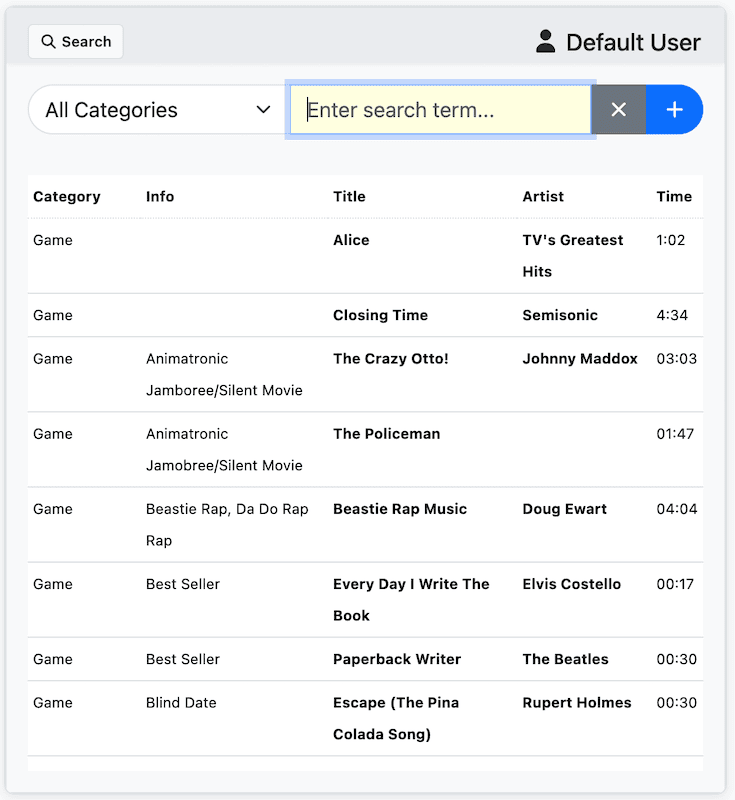
Search is case-insensitive. Use Cmd+L (Mac) or Ctrl+L (Windows/Linux) to quickly focus the search field.
Category Filtering
The category dropdown at the top of the search panel lets you narrow results to a specific category. Select “All” to search across your entire library, or choose a specific category to filter.
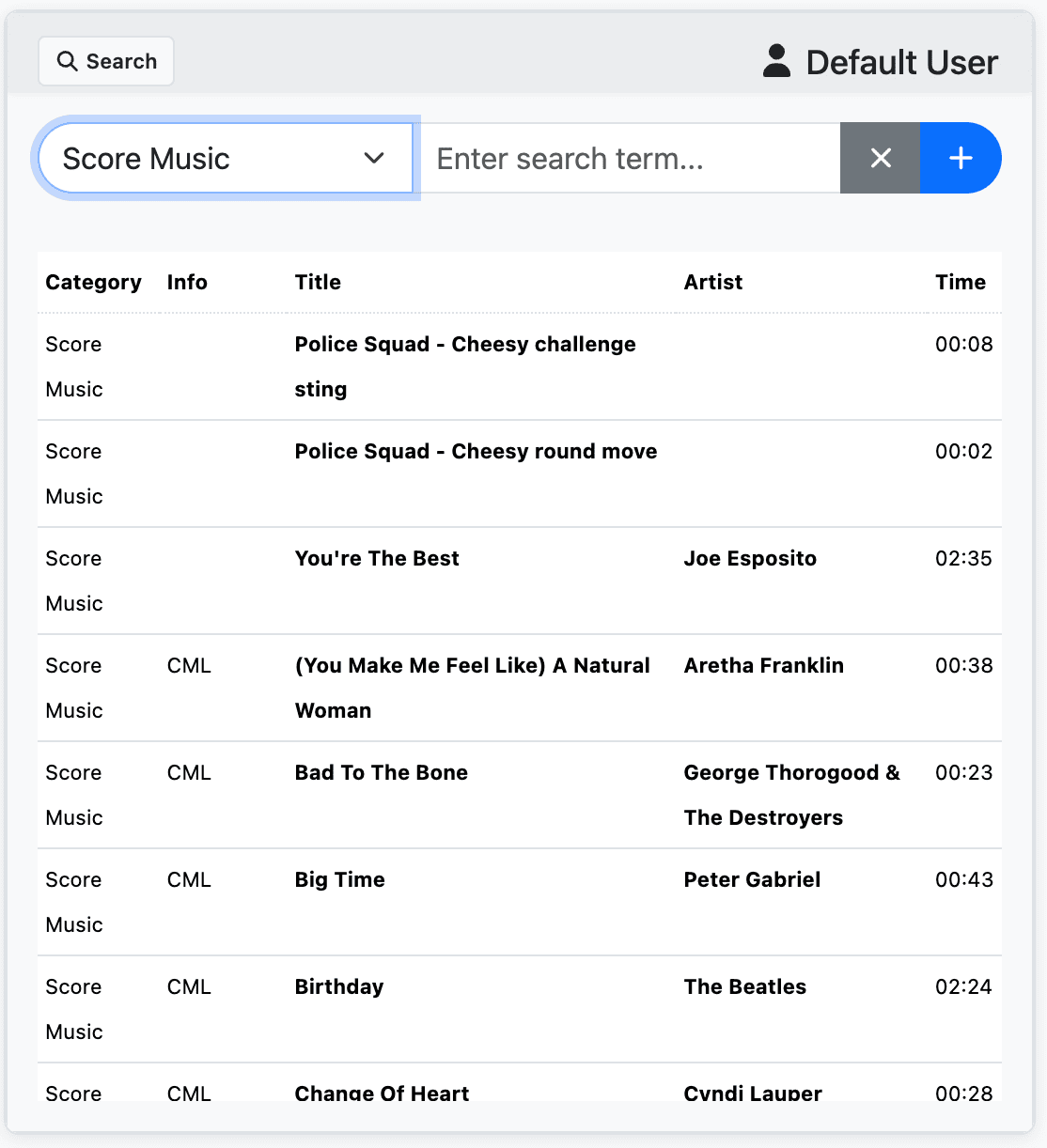
The category filter works in combination with the search field — you can filter by category and search by keyword at the same time.
Advanced Search
Click the search toggle button to switch to advanced search mode. This provides separate fields for more targeted filtering:
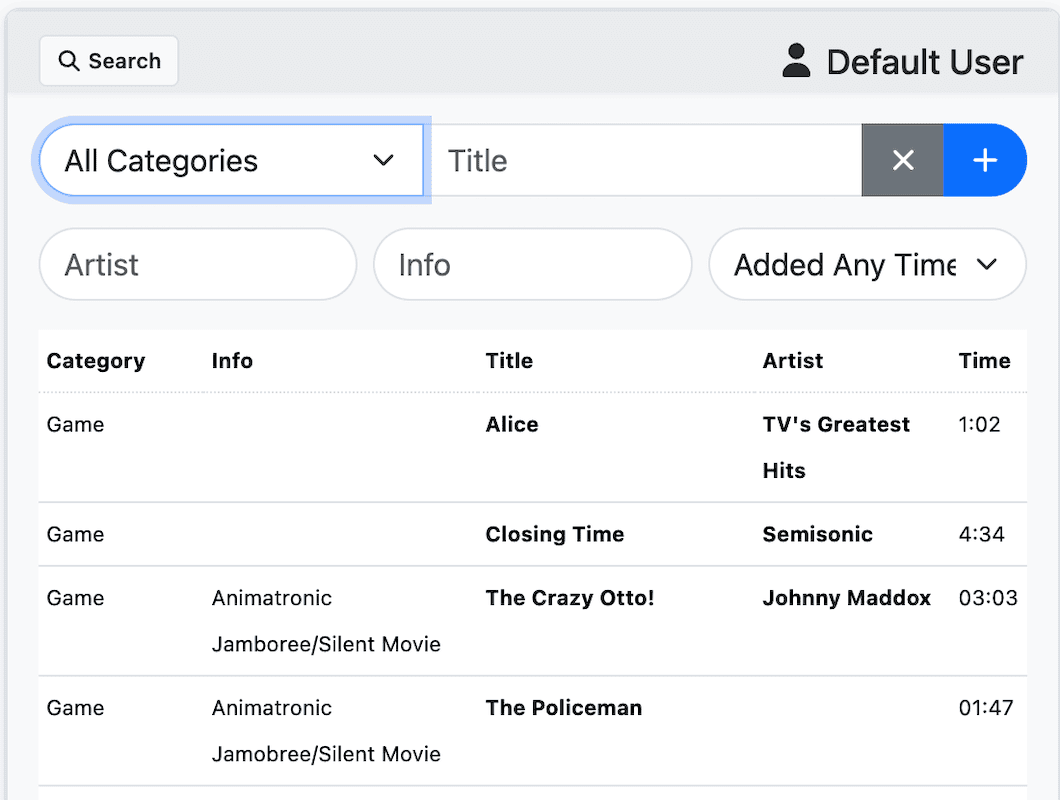
| Field | What It Searches |
|---|---|
| Title | Song title only |
| Artist | Artist name only |
| Info | Info/notes field only |
| Date Added | Filter by when songs were added: Past Week, Past Month, Past 3 Months, Past 6 Months, or Past Year |
You can combine multiple advanced search fields to narrow down results precisely.
Search Results
Results are displayed in a table with the following columns:
- Category — the category code
- Info — the info/notes field
- Title
- Artist
- Duration — shown in MM:SS format
Click a song to select it. From there you can:
- Play it with the playback controls or press Enter.
- Drag it to a hotkey slot or the holding tank.
- Press Tab to assign it to the next empty hotkey.
- Press Shift+Tab to add it to the holding tank.
- Use the Up/Down arrow keys to navigate between results.
Right-Click Menu
Right-click on any song in the search results for quick actions:
- Play — Play the song.
- Edit — Edit the song’s metadata.
- Delete — Delete the song from your library.
Keyboard Shortcuts
| Shortcut | Action |
|---|---|
| Cmd/Ctrl+L | Focus the search field |
| Cmd/Ctrl+M | Toggle advanced search |
| Up / Down arrows | Navigate between results |
| Enter | Play the selected song |
| Tab | Assign to the next empty hotkey |
| Shift+Tab | Add to the holding tank |
| Delete | Delete the selected song |