Overview
The playback controls are at the bottom of the Mx. Voice window. They show the currently playing song, a progress bar with elapsed and remaining time, and buttons for controlling playback.

Play, Pause, and Stop
| Control | Behavior |
|---|---|
| Play | Starts playback of the selected song. Enabled when a song is selected in search results, the holding tank, or a hotkey. |
| Pause | Pauses playback at the current position. Click Play again to resume. |
| Stop | Stops playback completely and resets the position. |
Fade Out
Mx. Voice can fade audio to silence instead of cutting it off abruptly. The fade duration is configurable in Preferences (default: 3 seconds).
- Esc — Stop immediately (no fade).
- Shift+Esc — Stop with a smooth fade-out.
Volume and Mute
- The volume slider adjusts playback volume from 0% to 100%.
- The mute button silences audio instantly without changing the slider position. Click again to unmute.
Loop
Click the loop button to repeat the current song continuously. When the song reaches the end, it starts over. Click the button again to disable looping.
Waveform Display
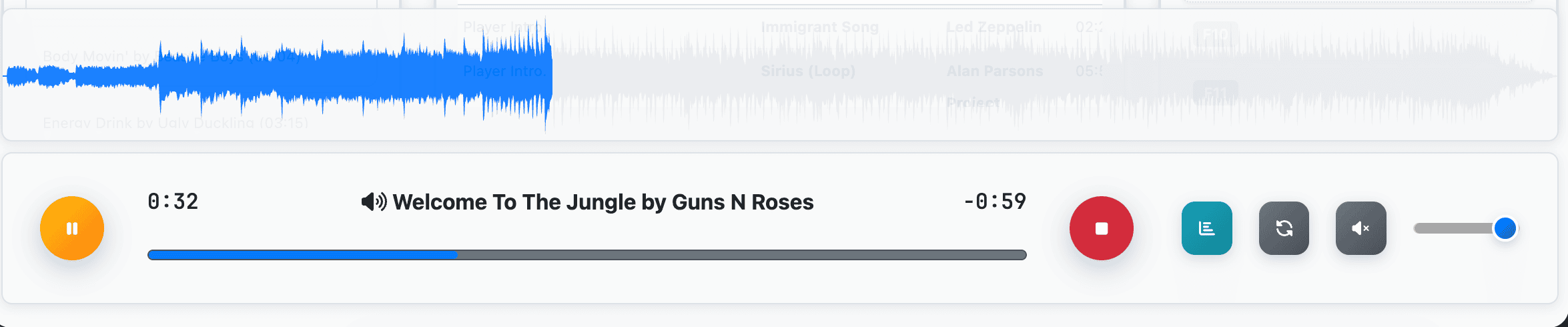
Click the waveform button to toggle a visual waveform of the playing audio. The waveform shows the amplitude of the audio and a position indicator that tracks playback progress. You can click on the waveform to seek to a specific position in the song.
Now Playing
The center of the playback bar shows the currently playing song’s title and artist, along with a progress bar displaying elapsed and remaining time.
Keyboard Shortcuts
| Shortcut | Action |
|---|---|
| Enter / Return | Play selected song |
| Space | Pause / Resume playback |
| Shift+Space | Pause all audio |
| Esc | Stop playback (immediate) |
| Shift+Esc | Stop with fade-out |
| Cmd/Ctrl+W | Toggle waveform display |
| Cmd/Ctrl+L | Focus the search field |
| F1–F12 | Play assigned hotkey |