Overview
Profiles let you maintain completely separate setups within Mx. Voice. Each profile has its own hotkey assignments, holding tank lists, and display preferences. This is useful when multiple performers share a computer, or when you want different configurations for different shows or venues.
The Profile Launcher
When you start Mx. Voice, the Profile Launcher appears. It shows a list of all available profiles. Select one and click Choose Profile, or double-click a profile to launch it directly.
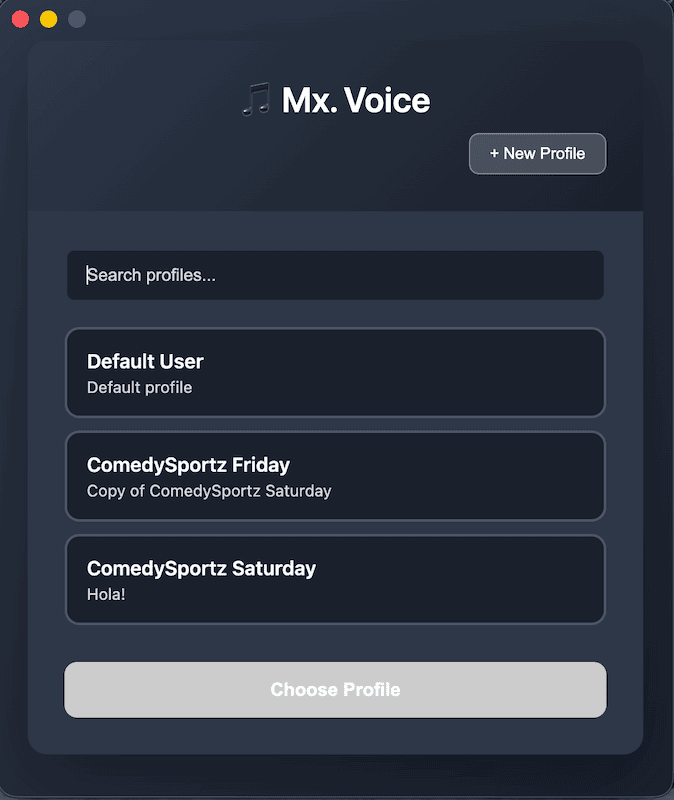
You can search for profiles by name or description using the search field in the launcher.
Default Profile
On first launch, a Default User profile is created automatically. It appears at the top of the profile list and cannot be deleted. If you only need one configuration, you can use this profile for everything.
Creating a Profile
- Click + New Profile in the launcher header.
- Enter a Profile Name (required, up to 50 characters). Letters, numbers, spaces, hyphens, and underscores are allowed.
- Optionally enter a Description (e.g., “Friday night show at Club XYZ”).
- Click Create Profile.
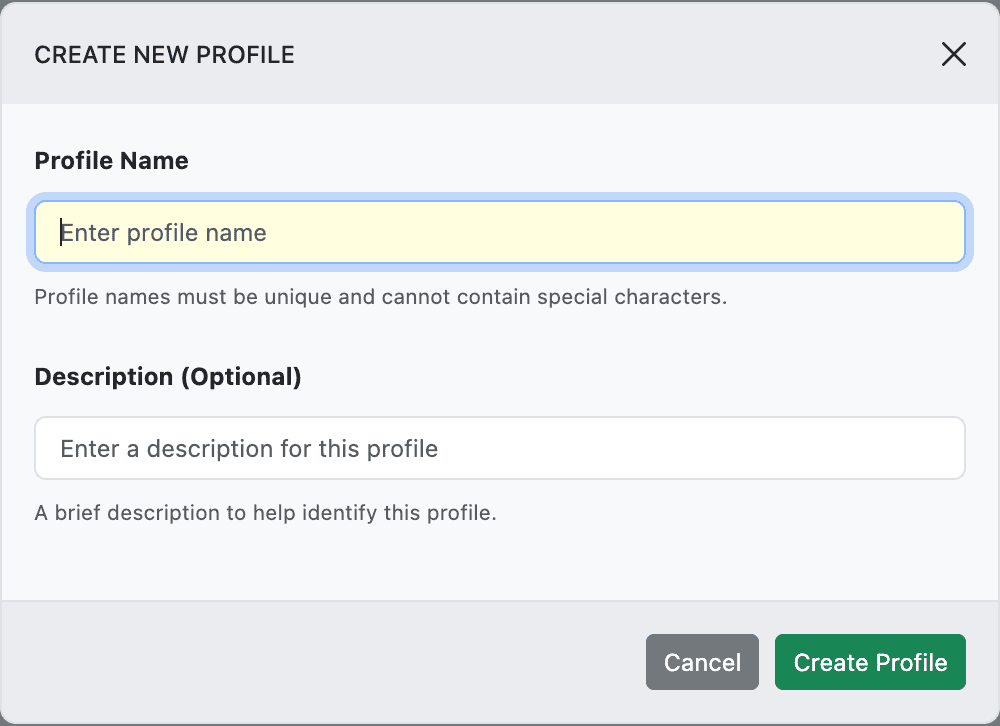
New profiles start with default preferences and empty hotkey and holding tank tabs. Profile names must be unique.
Switching Profiles
To switch to a different profile, go to View → Switch Profile in the menu bar. The main window closes and the Profile Launcher reappears so you can select a different profile.
Deleting a Profile
Click the delete button next to a profile in the launcher. The Default User profile and the last remaining profile cannot be deleted.
Warning: Deleting a profile permanently removes all of its hotkey assignments, holding tank lists, and preferences. Your song database and audio files are not affected.
What’s Isolated per Profile
Each profile maintains its own:
- Hotkey assignments (all 5 tabs, F1–F12 each)
- Holding tank lists (all 5 tabs)
- Display preferences — screen mode (light/dark/auto), fade-out duration, column order
- Window state — window size and position
What’s Shared Across Profiles
All profiles share:
- Song database — all profiles search the same library of songs. Adding or removing songs affects all profiles.
- Directory settings — audio files directory, database location, and hotkey/holding tank file directory.
- Debug logging — the logging toggle is global.
Where Profiles Are Stored
Profile data is stored in your system’s application data directory:
| Platform | Location |
|---|---|
| macOS | ~/Library/Application Support/Mx. Voice/ |
| Windows | %APPDATA%\Mx. Voice\ |
| Linux | ~/.config/Mx. Voice/ |